This User Guide takes you through how to download invoice reports from BinWise and upload to Compeat. The upload process will book invoices processed in BinWise to your accounting system. The A/P entry will be DR COGS, and CR A/P.
Compeat Upload is only available to Customers who have purchased this export feature from Compeat.
Updating your codes
(1) Go to the "Vendor" tab and select "Update Codes"

(2) Add the "Vendor Code" (External) in the right side field.
This is the Vendor Code in Compeat. The Compeat Vendor code is needed to link BinWise Vendor to Compeat Vendor.

(3) Go to the "Match Sales" tab and select "Sales Settings"

(4) Select the 'Accounting Upload Settings" tab
A. Select the 'Accounting Upload Settings" tab
B. Update your Compeat GL code in the "Accounting GL Code" section. The GL Code will be the Account Number in Compeat that COGS will be charged to
C. Then enter in the Compeat Accounting System Entity Number
D. Select "Update"

Downloading your Reports

(2) Once here choose "Accounting Export" from the Report drop-down options.

(3) Choose the "Start/End BinWise Process Date" and select which Accounting System Entities you want to include. Then click "Get Report."

(4) Export the report by clicking the Excel icon and save to your desktop. This is the file you will upload to Compeat.
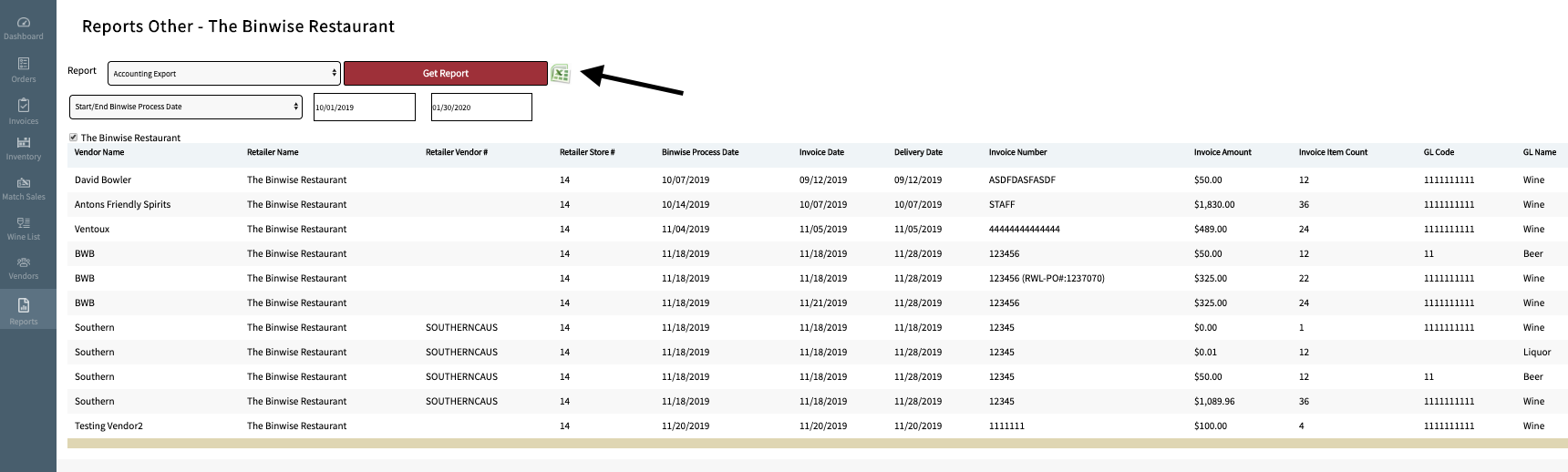
Report Column Descriptions:
- Vendor Name - Vendor name from BinWise
- Retailer Name - BinWise ID Name
- Retailer Vendor# - Vendor Code in Compeat
- Retailer Store# - Your Accounting System Entity
- BW Process Date - Date the invoice is entered into BinWise
- Invoice Date - Invoice date per invoice, this will be uploaded as "Apply Date" in Compeat
- Delivery Date - Date products are received into inventory in BinWise
- Invoice Number - Invoice number per invoice
- Invoice Amount - Total amount for invoice
- Invoice Item Count - Total number of items on invoice
- GL Code - Assigned Compeat "Accounting GL Code"
- GL Name - GL category assignment in BinWise
* Note - The BinWise process date can be after the invoice & delivery date.
For example, products are received Jan 10, 2014 with Invoice Date of Jan 10, 2014. The BinWise process date can be Jan 12, 2014, which represents the date the invoice is entered & processed in BinWise.
If you run your Compeat upload on Jan 10, 2014, you will not see this invoice since it has not been processed yet in BinWise. However, if you run your Compeat upload on Jan 12, 2014, this invoice will be included.
Exporting/Uploading your Reports into Compeat

In order to upload the BinWise invoice file into Compeat, you will need to contact Compeat directly for a feature install. Please email directsupport@compeat.com
There is a Compeat install fee of appx $200/hr (estimate is 1-2 hours, and Compeat fees are subject to change). The process can generally be completed within 1-3 weeks (Timeline for completion can only be confirmed by your Compeat representative.).