Creating a Credit Memo for Product Replacement
Credit Memos are useful when you need to return some of the product that was delivered to you. Some situations where you might need to utilize the credit memo function are: if some or all of the items delivered to you were the wrong product, or, if some or all of the items delivered to you were broken or damaged during transport. The credit memo reduces the quantity received on the applicable invoice. Once the product is replaced and the credit memo is closed, the replacement amount that you receive will be added back into your inventory.
Credit Memo for Product Replacement (1)
There are two ways to create a new credit memo:
Option 1) On the invoice in question, click on "add credit memo." The credit memo number will be automatically generated by the system as CM - invoice number. The CM will auto populate all items on the original invoice, as well as the original invoice date.
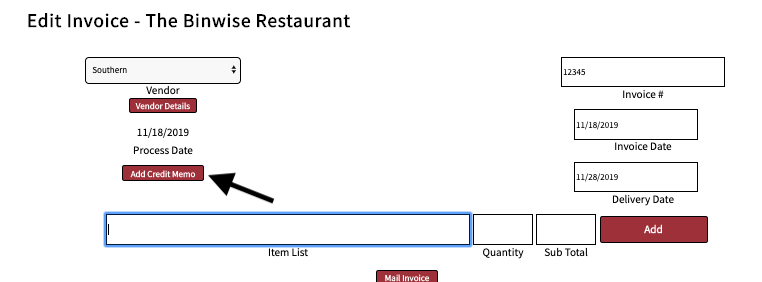
Option 2) From the "Invoices" tab on the home page, select "Credit Memos" from the dropdown. You can then click "new" and select the invoice the credit memo should be linked to.

Credit Memo for Product Replacement (2)

All of the items on the original invoice will auto populate onto the Credit Memo. Only fill out the line item(s) that you need product replacement for, and when you click "save" the other items will be removed. Choose "product replacement" for the credit type, and choose the appropriate code. Choose "B" if the product was damaged during transport, and "R" if the wrong item was delivered to you.
Credit Memo for Product Replacement (3)

Enter in the quantity of bottles to be replaced, and the subtotal will automatically change with the quantity. You can review your credit memo details in the "Credit Memo Summary" box, and then click "Create" to create and save the credit memo.
Credit Memo for Product Replacement (4)

To edit or close an existing credit memo, click "edit." See the user guide "closing a credit memo" for more information on how to close the credit memo. To delete, you can utilize the "delete" button. Only open credit memos can be deleted. Once a credit memo has been closed, deletion is not an option.
The Credit Memo you have created will tie back to the original invoice and invoice date, and will be part of that invoice in the variance report and perpetual inventory until a new inventory cycle begins.
As with Invoices and Purchase Orders, Credit Memos should be all squared away the day prior to your inventory day.
Receiving Replacement Products And Closing A Credit Memo
Once you have received the replacement product for the item(s) on your credit memo, you need to close the credit memo so that the appropriate amount of the item(s) can be added back to your inventory.
Receiving Replacement Products and Closing a Credit Memo (1)
To go to the "Credit Memos" page, click on the "Invoices" tab, then "credit memos." To find a specific credit memo, you can search by the credit memo number (CM-original invoice number), process date, invoice date, item, or vendor.

Receiving Replacement Products and Closing a Credit Memo (2)
Select "edit" to access the credit memo.

Receiving Replacement Products and Closing a Credit Memo (3)

Make sure the quantity is correct, and then click on the lock image to close the credit memo. The lock will then appear closed, and this will prompt you to enter the invoice details.
Receiving Replacement Products and Closing a Credit Memo (4)
Closing a Credit Memo is the same concept as closing a Purchase Order or entering an invoice.

In order for the credit memo to be closed and saved, you must enter in the following information: If you don't click save after filling in this information, the credit memo will stay open and the item(s) will not be added back into your inventory.
Delivery date: Date products are received and added into inventory.
Invoice date: The date of the invoice that came with the product replacement.
Invoice number: Number on the invoice that came with the product replacement.
As with Invoices and Purchase Orders, Credit Memos should be all squared away the day prior to your inventory day.