Barcode Labels
(Using Scanner)
Good Use: Designated Cellar, Designated Bins, Cases, Low Volume Sales Items, Liquor Storage, Beer Storage
Bad Use: BTG Bottles, Bar, Kegs, High Volume Sales Items
BinWise Recommendation: Larger Wine Sku Programs Use At Least Some Labels
Setup: Heavy Upfront Work, Maintenance Minimal With Consistent Actions
Please watch the Inventory Intro Video for best recommendations on how to use barcode labels.
Must Use Laser Printer for best results.
How to Print Barcode Labels
Materials Needed:
-Laser Printer
-Avery Type 5167 Labels
Printing Labels:
-Set the PDF print setting 'SCALING' to 'NONE' or else the barcodes won't scan properly.
-Save the PDF file to your computer. Then open the file in Adobe before printing.
When To Print Barcode Labels:
1. Initial Inventory setup
2. When New Items Arrive From Purchasing in BinWise
Initial Setup
Labeling All Items
1A. Orders - Bar Code Shopping Cart
From the "Orders" tab, choose "Bar Code Shopping Cart"

1B. Starting Inventory/ Clearing Cart
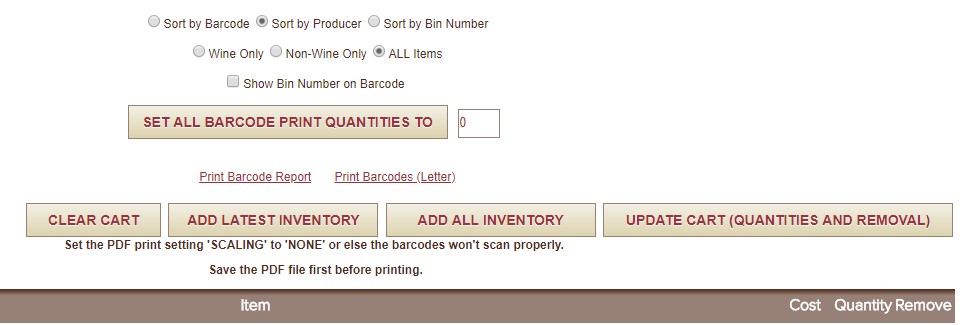
Click Add All Inventory
Then Set All Barcode Print Quantities to 12 - Click the Button (This will affect all item label counts)
Then Click Print Barcodes (letter)
Options: Before You Print - Read Below
-If you want to only print your Wine Items - Choose the Wine Sort Option
(Same goes for Non-Wine or All Items)
-If you provided Bin Numbers to us and want them included - Check Show Bin Number on Barcode. BIN 4 Only. Check Your Perpetual to Confirm.
Note: Options Updates will only affect the pdf version - no changes will be applied on the active Binwise screen.
When Done with Options - Click Print Barcodes (letter)
Maintenance
Printing Labels For New Items
Click on “Clear Cart” - You want to do this each round to have a clean start.
Once your initial setup is completed, you will need to maintain the labels for all new items being delivered into your location. Depending on how you label your area (see top for suggestions), you will now need to print based open POs or Entered Invoices that were purchased outside of BinWise.
2A. Selecting Open POs / Invoices To For Printing

The list in this box above shows all open POs and entered invoices in the the system.
You can load your barcode shopping cart with items from as many invoices as you’d like to and you can even scroll down within this box to select invoices from the past if you want to reprint anything.
1. Choose the POs / invoice(s) with the new items that need to bar coded (This could include bottles that have been sold through stock OR Brand new items to your cellar)
2. Click on “Add These Order Items to Cart”
2B. Manually Adding Items to the Cart
This is a great way if you underestimated your counts or you need to quickly print a one-off set of labels.

You can use the search bar and add items manually to the cart.
1. Use the keyword search box to find the wine - start with the producer and then continue the rest of the item's description
2. Enter the quantity of barcodes you’d like to print
3. Click on “Add” and the new item will appear at the bottom of your barcode shopping cart
Editing the Active Shopping Cart

You can manually add or remove items from your barcode shopping cart:
1. To remove an item from your cart, check the “Remove” box to the right of the item
2. If you have loaded an item into the cart and want to change the number of barcodes you would like to print, you can change the quantity
3. After steps 1 & 2, click on “Update Cart” to see your changes take effect
Set Quantities For All Items - Read Warning

1. You can set the default number of labels that will print for each item by inserting your preferred quantity in the box and then
2. Click on “Set All Barcode Quantities To>>>
Note: This is a great tool when you receive full cases of items.
Be Aware if you make adjustments to each item with a specific number of labels - this will override your manual work!
Sorting/Filtering Barcodes

1. Your barcode sheet order can be sorted in a few different ways: Sort by Barcode, Sort by Producer and Sort by Bin Number (BIN 4)
2. The bar code sheets can also be filtered to only show select categories: Wine Only, Non-Wine Only and All Items
***Click "Show Bin Number on Barcode" to have the Bin number print on the label - (BIN 4) - Bin numbers can be entered in the Item stats page OR they were assigned during inventory upload***
3. You can print a barcode report which will show bin locations if you’ve provided them to BinWise and is a valuable tool to locating your items for labeling your cellar the first time
4. Click on the link “Print Barcodes” to generate the barcode label document for printing
Printing Barcodes
Save the barcode document as a PDF - then open in Adobe later to print.

This is an example of what the barcode sheet will look like
**Please note, the printing specs are set to work exactly with the Avery Labels - Laser #5167 - 1/2 inch X 1 3/4 inch.
Before printing the entire list of labels - print a test run with a full page of items. The bar code should have clear defined lines and not be smeared in any way. Then take the scanner and make sure they in fact scan.
Keep in mind, as long as the bar code is on the label - it is ok if the description runs off the side of the label.